Thursday, 31 January 2013

Android's Security

Source: http://officialandroid.blogspot.in/

The last year has been a phenomenal one for the Android ecosystem. Device activations grew 250% year-on-year, and the total number of app downloads from Android Market topped 11 billion. As the platform continues to grow, we’re focused on bringing you the best new features and innovations - including in security.

Adding a new layer to Android security
Today we’re revealing a service we’ve developed, codenamed Bouncer, which provides automated scanning of Android Market for potentially malicious software without disrupting the user experience of Android Market or requiring developers to go through an application approval process.

The service performs a set of analyses on new applications, applications already in Android Market, and developer accounts. Here’s how it works: once an application is uploaded, the service immediately starts analyzing it for known malware, spyware and trojans. It also looks for behaviors that indicate an application might be misbehaving, and compares it against previously analyzed apps to detect possible red flags. We actually run every application on Google’s cloud infrastructure and simulate how it will run on an Android device to look for hidden, malicious behavior. We also analyze new developer accounts to help prevent malicious and repeat-offending developers from coming back.

Android malware downloads are decreasing
The service has been looking for malicious apps in Market for a while now, and between the first and second halves of 2011, we saw a 40% decrease in the number of potentially-malicious downloads from Android Market. This drop occurred at the same time that companies who market and sell anti-malware and security software have been reporting that malicious applications are on the rise. While it’s not possible to prevent bad people from building malware, the most important measurement is whether those bad applications are being installed from Android Market - and we know the rate is declining significantly.

Android makes malware less potent
In addition to using new services to help prevent malware, we designed Android from the beginning to make mobile malware less disruptive. In the PC model, malware has more potential to misuse your information. We learned from this approach, designing Android for Internet-connected devices. Some of Android’s core security features are:


  • Sandboxing: The Android platform uses a technique called “sandboxing” to put virtual walls between applications and other software on the device. So, if you download a malicious application, it can't access data on other parts of your phone and its potential harm is drastically limited.
  • Permissions: Android provides a permission system to help you understand the capabilities of the apps you install, and manage your own preferences. That way, if you see a game unnecessarily requests permission to send SMS, for example, you don’t need to install it.
  • Malware removal: Android is designed to prevent malware from modifying the platform or hiding from you, so it can be easily removed if your device is affected. Android Market also has the capability of remotely removing malware from your phone or tablet, if required.

No security approach is foolproof, and added scrutiny can often lead to important improvements. Our systems are getting better at detecting and eliminating malware every day, and we continue to invite the community to work with us to keep Android safe.

Tuesday, 29 January 2013

Create Bootable Usb Drives ( for Windows, Linux & Mac)

Creating an bootable Usb Drive


1. Using UNetbootin (for Windows and Linux)


photobucketUNetbootin allows you to create bootable Live USB drives for a variety of Linux distributions from Windows or Linux, without requiring you to burn a CD. You can either let it download one of the many distributions supported out-of-the-box for you, or supply your own Linux .iso file if you've already downloaded one or your preferred distribution isn't on the list.

UNetbootin has built-in support for automatically downloading and loading the following distributions: Ubuntu, Debian, Fedora, PCLinuxOS, Linux Mint, Sabayon Linux, Gentoo, MEPIS, openSUSE, Zenwalk, Slax, Dreamlinux, Arch Linux, Elive, CentOS, Damn Small Linux, Mandriva, SliTaz, FaunOS, Puppy Linux, FreeBSD, gNewSense, Frugalware Linux, NetBSD but can work with others too.


UNetbootin can also be used to load various system utilities, including:

  • Parted Magic, a partition manager that can resize, repair, backup, and restore partitions.
  • Super Grub Disk, a boot utility that can restore and repair overwritten and misconfigured GRUB installs or directly boot various operating systems
  • Backtrack, a utility used for network analysis and penetration testing.
  • Ophcrack, a utility which can recover Windows passwords.
  • NTPasswd, a utility which can reset Windows passwords and edit the registry.
  • Gujin, a graphical bootloader that can also be used to boot various operating systems and media.
  • Smart Boot Manager (SBM), which can boot off CD-ROM and floppy drives on computers with a faulty BIOS.
  • FreeDOS, which can run BIOS flash and other legacy DOS utilities.


Installation & Screenshots


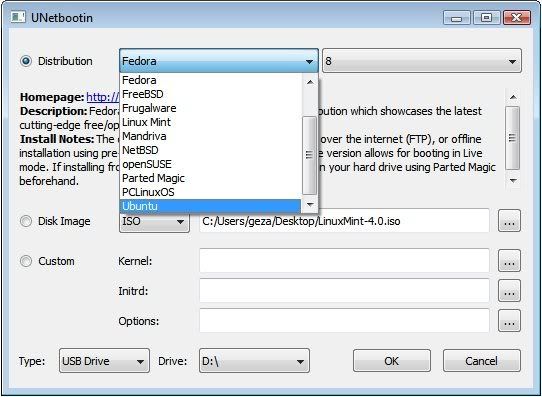
  1. If using Windows, run the file, select a distribution, floppy/hard disk image, or kernel/initrd to load, select a target drive (USB Drive or Hard Disk), then reboot once done.


  2. If using Linux, make the file executable (using either the command chmod +x ./unetbootin-linux, or going to Properties->Permissions and checking "Execute"), then start the application, you will be prompted for your password to grant the application administrative rights, then the main dialog will appear, where you select a distribution and install target (USB Drive or Hard Disk), then reboot when prompted.

    screenshot

    screenshot

  3. After rebooting, if you created a Live USB drive by selecting "USB Drive" as your install target, press the appropriate button (usually F1, F2, F12, ESC, or backspace) while your computer is starting up to get to your BIOS boot menu and select USB drive as the startup target; otherwise if there's no boot selection option, go to the BIOS setup menu and change the startup order to boot USB by default. Otherwise, if you did a "frugal install" by selecting "Hard Disk" as your install target, select the UNetbootin entry from the Windows Boot Menu as the system boots up.


To create a Live USB using UNetbootin, download an ISO file, select it under UNetbootin's "diskimage" option, and specify your target USB disk under "Drive:". After pressing OK, wait as the ISO is extracted to your USB drive; once done, you will have a bootable Linux Mint Live USB drive.

Requirements


1 GB or larger USB drive, formatted as Fat32 (most USB drives come formatted as FAT32 by default, but if you need to format it, on Windows, go to My Computer->right click your USB drive->format, or on Linux, use GParted or another partition manager)

Supported operating systems: Windows 2000 and above OR a modern Linux distribution

Additional dependencies (Linux Only): You will need the packages syslinux and p7zip-full installed (no dependencies on Windows)

2. Using Win32 Image Writer (Windows only)


Graphical Interface


win32imagewriter.jpg
  1. Download the desired .img file
  2. Download Disk Imager from https://launchpad.net/win32-image-writer/+download
  3. Insert your flash media
  4. Note the drive letter assigned to your flash media
  5. Start Disk Imager
  6. Select the downloaded file and target device, and click "Write"
  7. Remove your flash media when the operation is complete

Command Line alternative


  1. Download the desired .img file
  2. Download flashnul from http://shounen.ru/soft/flashnul
  3. Attach your USB drive
  4. Run flashnul -p
  5. Note the physical device number for the USB drive
  6. Run flashnul -L \path\to\downloaded.img
  7. Answer "yes" if the selected destination device is correct
  8. Remove your USB drive when the command completes

3. Using usb-imagewriter (Ubuntu Only)


Graphical Interface


usb-imagewriter.png
  1. Download the desired .img file
  2. Install the usb-imagewriter package
    • If your release does not include this, download it from Oliver's PPA
  3. Open Applications -> Accessories -> Image Writer
  4. Insert your flash media
  5. Select the downloaded file and flash device, and click "Write to Device"
  6. Remove your device when the operation is complete

Command Line alternative


  1. Download the desired .img file
  2. Open a terminal and insert your flash media
  3. Look at the output of dmesg | tail -20 to determine the device node assigned to your flash media (e.g. /dev/sdb)
  4. Run sudo umount /dev/device/node
  5. Run sudo dd if=/path/to/downloaded.img of=/dev/device/node bs=1M
  6. Remove your flash media when the command completes

Update: Ubuntu now includes "Startup disk creator". You can access it via System > Administration > Startup Disk Creator and it's a very easy to use tool. Simply enter your memory stick into the USB drive, then open Startup Disk Creator and select "Format" (the USB stick needs to be formatted first), then select the ISO image you want to write on the USB memory stick and click "Make startup disk". That's it.


4. Using Diskutil (Mac OS X only)


  1. Download the desired .img file
  2. Open a Terminal (under Utilities)
  3. Run diskutil list to get the current list of devices
  4. Insert your flash media
  5. Run diskutil list again and determine the device node assigned to your flash media (e.g. /dev/disk2)
  6. Run diskutil unmountDisk /dev/diskN
  7. Execute sudo dd if=/path/to/downloaded.img of=/dev/diskN bs=1m
  8. Run diskutil eject /dev/diskN and remove your flash media when the command completes

Sponsored Links >


WiFi Hack on Android: Using BackTrack

WiFi Hack


 Want to hack an wifi on android, then try out Back Track an operating system of Linux. Backtrack is a very popular Linux distribution for penetration testing. It has hundreds of tools for pen testing and hacking. Now a version of backtrack is available for arm processor devices. Normally android based mobile devices uses arm processor so we can install arm version of backtrack on android devices.

Following are the steps and utility for the installation process.
1. Download terminal emulator,android vnc and arm version of backtrack.
2. Extract the content of img file and transfer it in to memory of android devices.
3. Install BusyBox and start it.
4. Open terminal emulator. use "cd" command to get in backtrack directory where extracted content is saved on memory card of device. In this case command is
cd /sdcard/BT5
5. Type "sh bootbt" and we will be in Backtrack.


Here's an video tutorial that will help you to learn how to run it.


  After that you have successfully installed Back Track, now you can see other video tutorials that will let you know how to hack wifi


Sunday, 27 January 2013

Manager for Android

Advanced Task Managers Apps. For Your Android


1. Advanced Task Cleaner: 

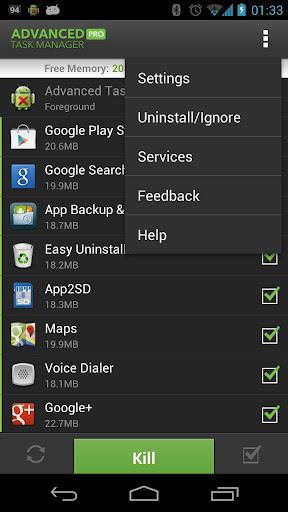
If you are running out of memory or want to free up your memory, then you can download this amazing app that will help you to manage all the running applications and also to free up your memory usage.

Download

advertisement


advertisement

2. Download Manager: 

Download this amazing application that will help you to manage all your download while you are still able to surf over the internet. This application will help you to minimize your download and you can even reduce the downloading speed and can again surf the net freely.


3. Android Sync Manager using WiFi:


Android Sync Manager WiFi is the first Wireless PC Sync Tool in Android Market. With Android Sync Manager, you can manage your handset data easily and wireless sync with your PC via WiFi technology. Including contacts, messages, photos, video, music, applications and calendar. 


For your PC: Download

For your Android:  Download

 4. File Transfer Manager:

If you are daily user of your website and want to manage your website then  you can download this application. It will help you to manage your website from your android phone. So no need to use PC or Laptop for working with files over internet.


  Download

Monday, 21 January 2013

Earn Money Online

Make Money online just by doing some little work!!

If you are bored of using social networking sites and wanna do something from which you can benefit yourself then hurry, try some sites that can help you do some work from your home and earn :)


Here are some websites that can help you to earn:

 1. eBay: A lot many people are using ebay ( the famous shopping site) for earning purposes.

If you have any item in your home that you don't want to use anymore, you can sell it on eBay and can get some handsome amount for the same by biding.


2. Blogging: If you have knowledge that you want to share with people and want your own website but don't know anything about it programming then you can go for blogging 

Spread out your blog into your friends. You can make blog using some famous sites like www.blogspot.com and www.wordpress.org. Get out some different topics like Android, Digital Photography, Money Making etc.
After you have got hits from users, you can have ads on your blog that helps you to earn money using ad sense services provided by Google.


3. AllHitDeals:- It is an online website that will help you to earn money by watching ads over internet and by paying at little bit of money of 1 year subscription.

AllHitDeals is an genuine company, which gives its pro user to watch the ads over internet and then get some amount of money for the same. You can easily earn upto 2400 Rs./ Month with an starting investment of 8250. Believe me its an genuine company and i have also tried this and i'm getting benefit from it. www.allhitdeals.com


4. Free Lancer:- If you are good at something, and want to do some par time job from you home then you can go for freelancing.

Freelancing is basically an new concept that people all over the world are adopting now a days. You can do some work for people that in return they will pay you some amount of money.


5. Art:- If you are good at artwork then you can sell it also.

www.artfire.com helps you to sell your handmade items on the internet. If you are creative enough and have made some exciting things, you can even earn form it by selling it on internet. OR if you are good at slogan writing on the t-shirts, you can go for www.cafepress.com . This website help you to make a new design of an t-shirt and if got selected, you can sell the design and can benefit from it.